Presets
A preset stores a set of develop settings as a named look you can apply to any photo in one click. Open a photo and click Presets in the right-hand rail.
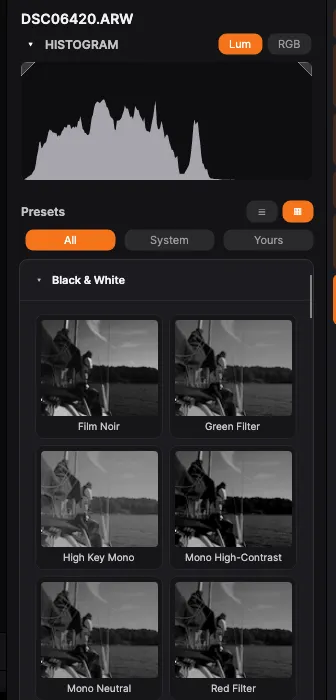
Presets that come with PxlMonk
Section titled “Presets that come with PxlMonk”PxlMonk ships with a catalog of ready-made looks, grouped by Cinematic, Style, Mood, Seasonal, Landscape, Portrait, Street & Travel and Black & White — from Teal & Orange and Golden Hour to Film Noir and Sepia. Apply them like any other preset. They are read-only: you can’t rename or delete a built-in one, but you can save your own preset over it to keep your version.
Create a preset
Section titled “Create a preset”Develop a photo the way you like it, then create a preset from those settings. Give it a name and a group (to keep your presets organised), and choose which parts of the edit to include — for example only the colour and tone, or the whole look. The new preset is saved to your library and available on every photo.
Apply a preset
Section titled “Apply a preset”With a photo open, apply a saved preset to it — PxlMonk copies the stored settings onto the photo, which you can then fine-tune further. A Strength slider appears right after you apply one, dialling the look between none and full — the individual sliders follow along, and the whole adjustment is a single undo. Switch the panel between a list and a thumbnail view with the buttons in the header — thumbnails, showing each look on the current photo, are the default.
You can also apply one without opening a photo: right-click in the grid or the filmstrip and choose Apply preset. It offers the same looks as the panel — the ones that come with PxlMonk and your own — and applies to every photo you have selected.
A filter row switches between all presets, only the ones that come with PxlMonk (System), or only your own saved presets. Each group remembers whether you left it open or collapsed.
Import Lightroom presets
Section titled “Import Lightroom presets”Already have presets from Lightroom? Import a .xmp preset and PxlMonk converts it into
a PxlMonk preset you can apply like any other.
The conversion now carries a preset’s colour grading / split toning and its full HSL panel across, scaled to pxlmonk’s controls so a strong Lightroom grade lands strong but clean rather than flooding the frame. Lightroom’s per-region grade luminance and its Global wheel have no equivalent and are left out.
Next steps
Section titled “Next steps”- White balance & tone — the settings a preset captures.
- Exporting — save the finished photo.