Organizing your library
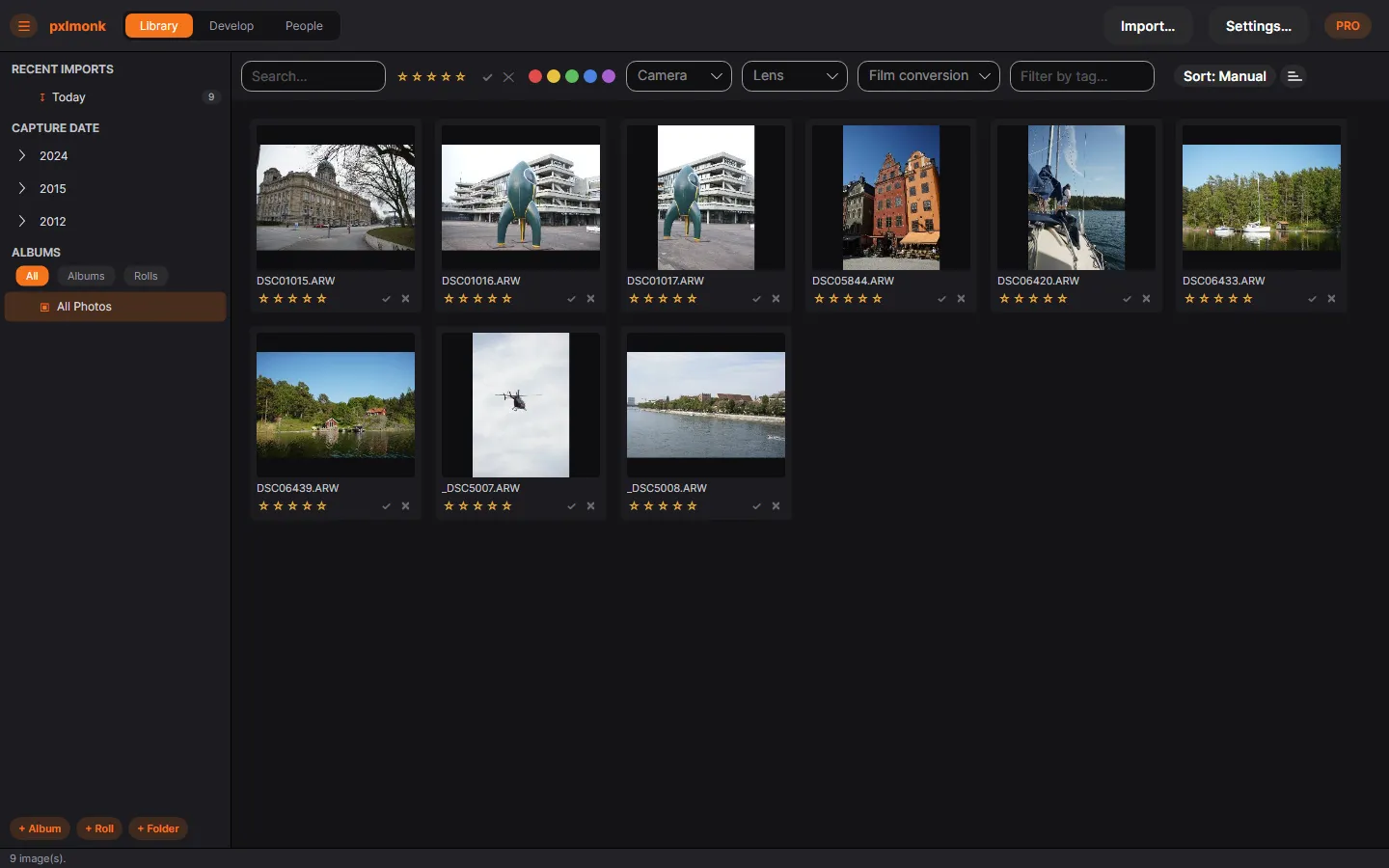
The Library is where you browse and organise everything you’ve imported. The sidebar on the left narrows what’s shown; the grid in the middle is your photos; the toolbar above the grid filters and sorts them.
Browse
Section titled “Browse”Use the sidebar to jump around your catalog:
- All Photos — everything in the library.
- Recent imports — the batch you just brought in.
- Capture date / Modified date — browse by year and date.
- Albums and Rolls — your own groupings (see below).
Rate, flag & label
Section titled “Rate, flag & label”Give a photo a verdict so you can find the keepers later. On each thumbnail (and in the Develop Info panel) you can set:
- a star rating (0–5),
- a flag — approved or rejected,
- a color label.
Then filter the grid by minimum rating, flag or color label from the toolbar, and sort by capture time, file name, rating, color label or manually.
Tags & search
Section titled “Tags & search”Add tags to photos and type in the Search box to find them by tag, name or file name.
Albums, folders & rolls
Section titled “Albums, folders & rolls”Group photos without moving any files:
- Albums — hand-picked collections; a photo can be in several.
- Folders — organise albums into a tree.
- Film rolls — group scans that belong to the same roll of film, so shared settings (like the film base) can be applied across the whole roll.
Create these from the + Album, + Roll and + Folder buttons at the bottom of the sidebar, or by right-clicking photos in the grid.
Next steps
Section titled “Next steps”- Developing your photos — open a photo and start editing.