Transform
Open a photo, then click Transform in the right-hand rail to reframe it. A crop overlay appears on the photo; the panel on the right holds every framing tool.
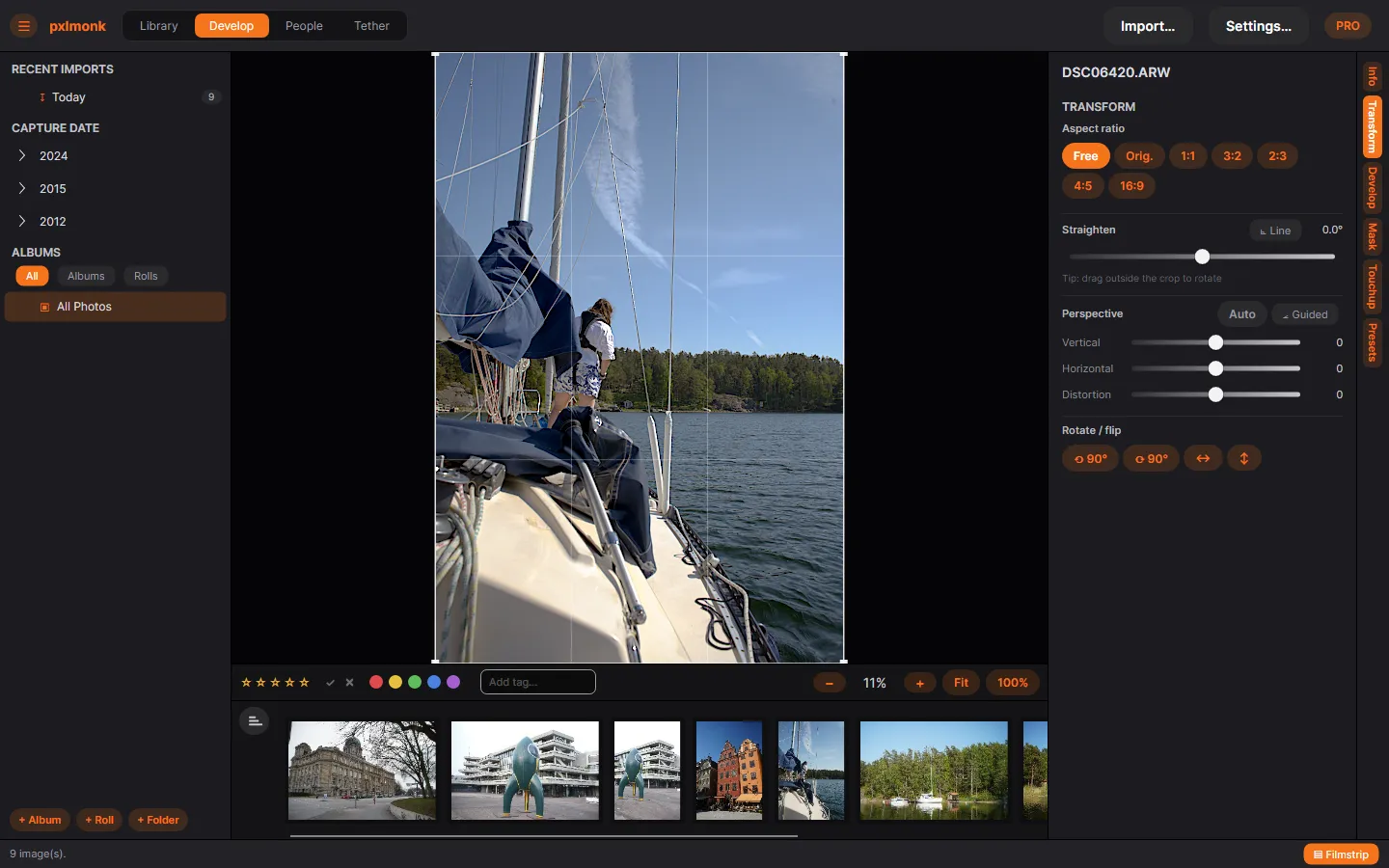
Crop & aspect ratio
Section titled “Crop & aspect ratio”Drag the crop handles on the photo to reframe. Lock the shape with Aspect ratio — Free, Orig. (the original), or a preset like 1:1, 3:2, 2:3, 4:5 or 16:9.
Straighten
Section titled “Straighten”Drag the Straighten slider to level a tilted horizon, or click Line and draw along something that should be level (a horizon, a building edge) and pxlmonk rotates to match.
Perspective
Section titled “Perspective”Fix converging verticals (a building that leans back):
- Auto analyses the image and corrects automatically.
- Guided lets you draw the lines that should be vertical or horizontal.
- Vertical, Horizontal and Distortion adjust it by hand.
Rotate & flip
Section titled “Rotate & flip”Use the Rotate / flip buttons to rotate the photo 90° left or right, or mirror it horizontally or vertically.
Next steps
Section titled “Next steps”- White balance & tone — adjust the look after framing.
- Masking — adjust selected regions only.