Hotfolder
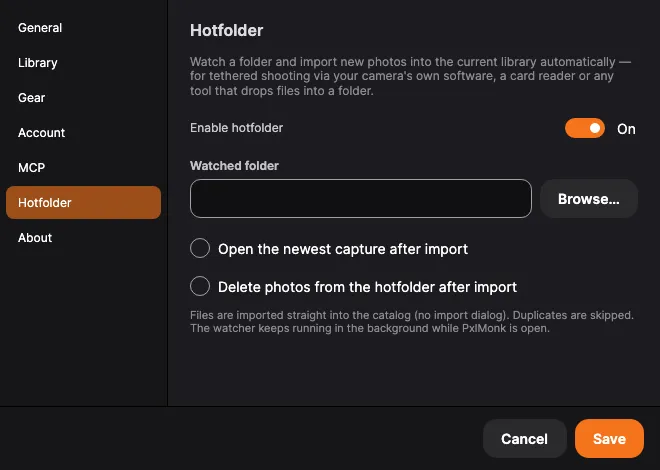
The hotfolder watches a folder and imports new photos into the current library automatically — for a card reader, your camera’s own software, or any tool that drops files into a folder. Set it up under Settings → Hotfolder.
If you want to shoot with the camera on a cable, PxlMonk can drive it directly and import as you go — see Tethered shooting. The hotfolder is for everything else.
Set it up
Section titled “Set it up”Turn on Enable hotfolder and pick the Watched folder with Browse… — the folder your camera software or card reader drops files into. If the folder doesn’t exist yet, PxlMonk offers to create it.
Options
Section titled “Options”- Open the newest capture after import — each new photo opens straight away, so a tethered shot appears on screen as you take it.
- Delete photos from the hotfolder after import — clears the watched folder once a photo is safely in the library, so it doesn’t fill up.
How it behaves
Section titled “How it behaves”Files are imported straight into the catalog — no import dialog appears. Duplicates are skipped, so a file that’s already in the library won’t be imported twice. The watcher keeps running in the background for as long as PxlMonk is open.
Next steps
Section titled “Next steps”- Your library — Managed vs Referenced, and what import does with your files.
- Organizing your library — rate and group what lands in the library.